#5 WayriCAD: Quick PI, Quick SI, and Thermal Checks Inside KiCad
WayriCAD, formerly KiWay, is my collection of KiCad plugins for PCB design, analysis, and project review. A growing part of that work is making electrical and thermal checks accessible while the board is still being developed: follow a power path, inspect a routed signal, or explore where heat is generated and how it leaves the board.
The three tools at the centre of that workflow are Quick PI, Quick SI, and QuickTherm. They read saved board information and combine it with explicit operating assumptions. The aim is to make those assumptions and their consequences easier to inspect, with enough context to decide what needs a closer look.
Three questions, three tools
| Tool | Starting question | Inputs to review | Results to inspect |
|---|---|---|---|
| Quick PI | How much voltage is lost between the source and the load? | Copper, terminals, current, material properties and returns | Voltage drop, current density and copper losses |
| Quick SI | How does a routed path compare with the signal’s edge timing? | Endpoints, stackup, rise time, driver and load | Delay, reflections, termination and return-path screening |
| QuickTherm | Where does the declared dissipation go? | Component powers, thermal paths, board materials and environment | Component estimates and supported steady or transient board fields |
Quick PI: follow the current through the copper
Quick PI starts with the saved PCB, a selected power net, and source and load terminals. The operating point includes source voltage and load current. From there, the supported DC copper models calculate voltage drop, current distribution, and resistive losses.
The simplest relationships remain useful when interpreting the maps:
\[\Delta V = I R_{\mathrm{path}}, \qquad P_{\mathrm{copper}} = I^2 R_{\mathrm{path}}.\]Those expressions assume a fixed linear resistance. Copper geometry, thickness, conductivity, via assumptions and the selected mesh all affect the modeled path. A bright local peak is a reason to inspect the geometry and refinement, not an automatic verdict on the board.
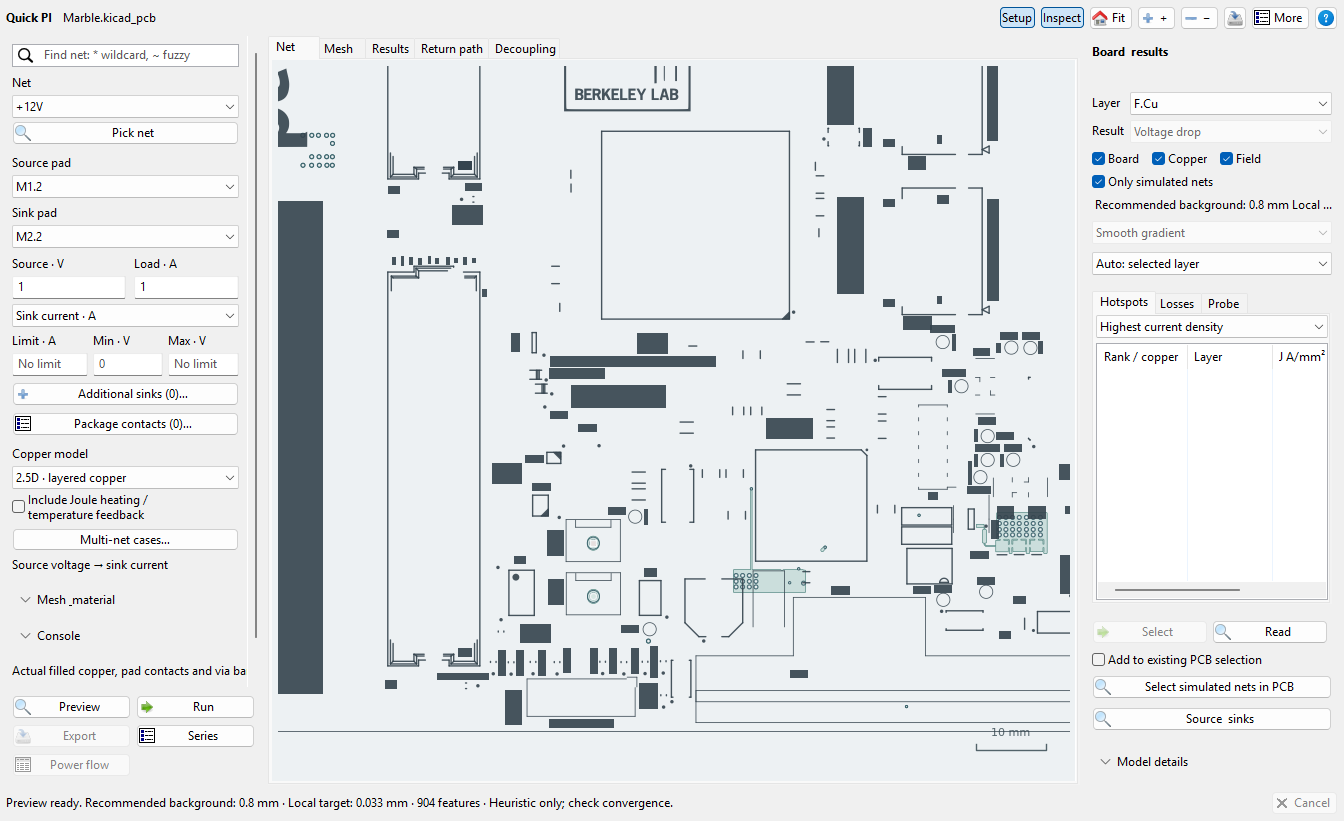
The workflow also supports multiple rails, explicit DC return copper, and grouped source/load pads. Shared-return studies solve the declared loads on common return copper together, so the return voltage drop and shared loss are accounted for explicitly. A separate geometric return-path audit answers a different question: reference coverage and transitions do not, by themselves, establish a complete electrical return circuit.
Change the load without losing the view
One recent interaction improvement is Ctrl+scroll over solved 2.5D copper to change the load current. Plain scrolling still zooms. Slow wheel movement gives finer current steps, while faster movement gives coarser changes; the plots, probes, and limits update while the view stays in place.
This reuses a fixed-temperature linear solution: voltage drop and current density scale with current, while copper loss scales with current squared. The load proportions are preserved. Changing geometry, materials, temperature, or the model itself needs the appropriate new solve; this interaction is not a substitute for an electrothermal study. The Quick PI guide describes the controls and applicability.
Quick SI: inspect the path and the assumptions together
Quick SI takes a routed signal from a source pad to a receiver pad, with the saved physical stackup and explicit driver/load assumptions. Rise time matters here: a route can be electrically significant for a fast edge even when its clock frequency seems modest.
The checks cover path delay, reflections, termination, and return-path information. The interface keeps the selected route beside the input assumptions and result evidence, so it is possible to see which path was screened and which values were supplied.
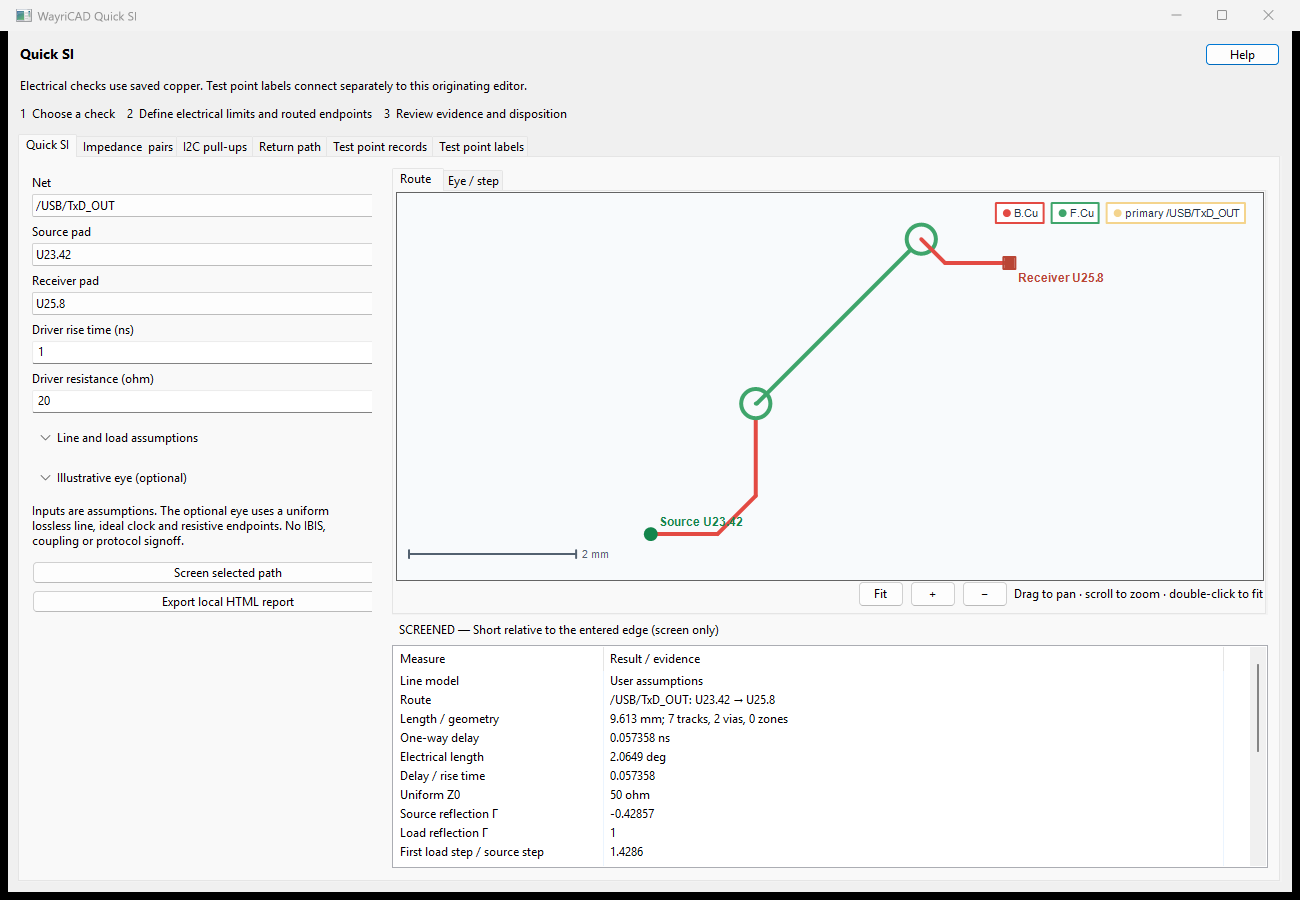
There is also a directed aggressor/victim workflow for supported local straight-section coupling. Its reports retain modeled coverage and omitted geometry. Local coupling results are not summed into a whole-board crosstalk prediction; branches, unsupported geometry and missing reference information still need review.
QuickTherm: start with actual dissipation
QuickTherm is installed separately from Quick PI. It reads saved footprint properties or reviewed table overrides for power, thermal resistance, and temperature limits. The important input is the component’s operating dissipation, not its maximum power rating.
At the simplest level, it provides a lumped thermal screen. Optional board models add thin-sheet or layer-resolved temperature fields, with supported steady-state and transient studies. Ambient conditions, materials, contacts and heat-rejection paths must be supplied for the selected model. Prescribed cooling conditions do not mean airflow has been solved.
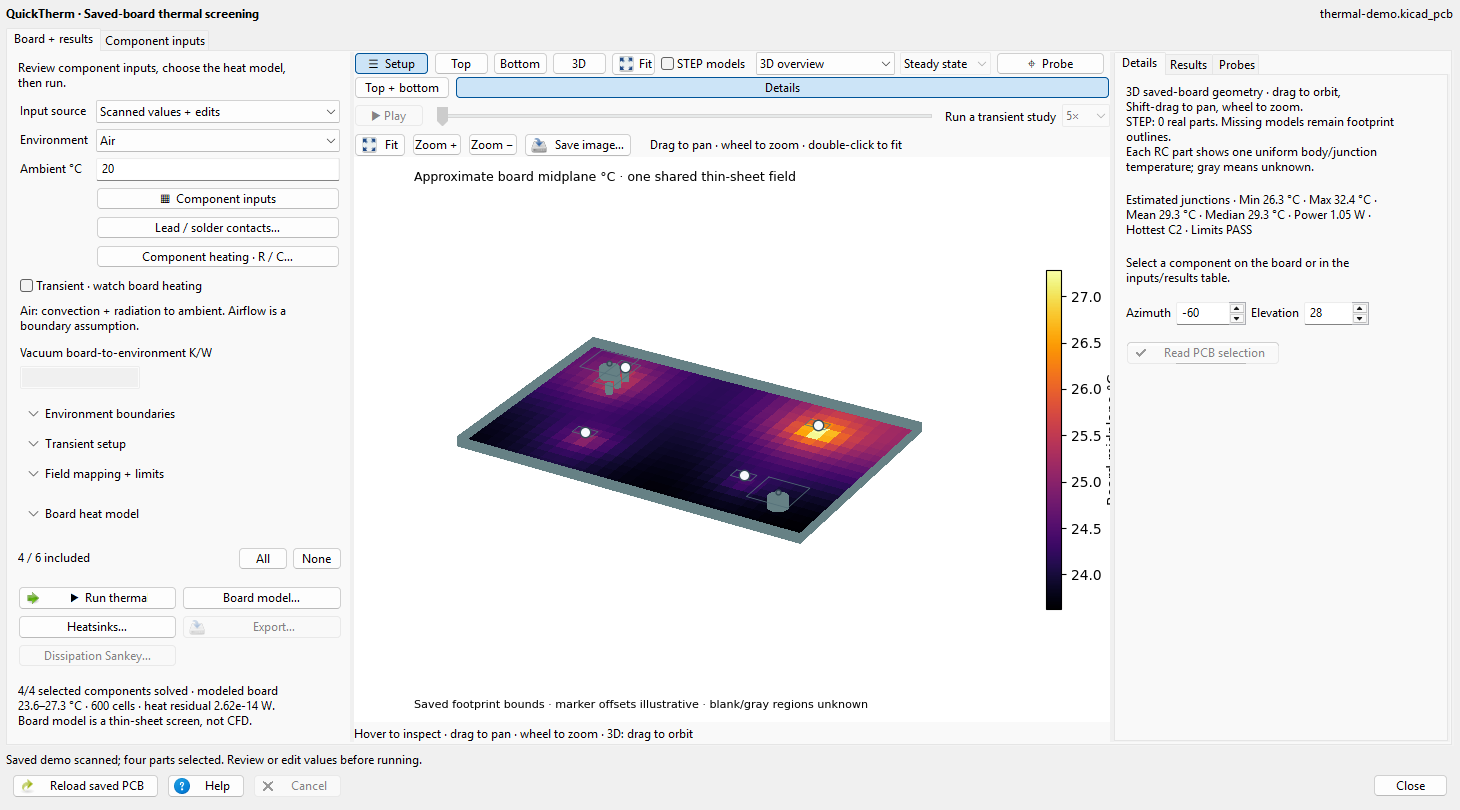
The distinction between board temperature and package junction temperature matters. A board field does not fill in a missing package thermal path. If the selected junction model lacks the required resistance or boundary information, the result stays unknown.
Automatic mesh sizing provides a practical starting point within the model’s budget. It does not establish convergence. Local peaks still need refinement checks, and transient studies need suitable time-step checks as well. The QuickTherm user guide walks through the inputs and available models.
A workflow that keeps the context
I want these tools to fit into ordinary board development:
- Save the board and refill its copper zones before analyzing it.
- Start with one power path, signal route, or small component group.
- Review operating assumptions, omitted features, materials, and boundaries.
- Inspect the geometry alongside the plotted results and pinned probes.
- Compare appropriate mesh or model settings before trusting a local peak.
- Export the report with its inputs, coverage, warnings, and result status.
The tools support native inspection and HTML/JSON reporting, with CLI workflows for repeatable studies. Missing inputs and unsupported regions stay visible in those reports. A completed run means the selected calculation completed; its usefulness still depends on the model and the question being asked.
Beyond the quick analysis tools
WayriCAD also includes tools for fanout, via stitching, trace refinement, BOMs, assembly variants, silkscreen placement, constraints, and manufacturing review. The quick analysis tools use the same saved project alongside those design workflows.
For a broader board-and-assembly study workspace, I’m also developing SPIKE. It brings geometry, materials, study setup and results together across supported analysis workflows. It is an experimental preview; the solver documentation records the scope of each route.
Try WayriCAD
Install the tools you need through KiCad’s Plugin and Content Manager using the repository installation guide, or download packages from WayriCAD releases. The project currently documents KiCad 10 as its validated target.
The full tool catalogue and the individual PI, SI, and thermal guides are the best starting points for checking whether a particular workflow fits your board.